

Think any cloud note app with a lock icon keeps your thoughts private?
Not always.
Standard Notes encrypts everything on your device before it leaves, and it can’t read your notes, but that protection shapes what editors and extensions can do.
This review walks through how end-to-end encryption, sandboxed web/desktop extensions, and editor limits affect your workflow, backups, and cross-device sync.
Read on to see what works, what breaks, and who should pick Standard Notes for real privacy without losing daily usability.
Core Evaluation of Standard Notes Security, Editors, and Extensions

Standard Notes encrypts everything on your device before anything touches its servers. The company doesn’t hold your encryption keys, so it can’t read your notes. Period. Device Storage Encryption (DSE) adds another layer by encrypting your keys whenever the app closes. On desktop, that’s through Passcode Lock. On iOS, it’s Storage Encryption with an optional Fingerprint Lock. This isn’t marketing fluff, it’s real privacy architecture.
The editor setup splits into two tiers. Free users get unlimited cloud-synced notes across every platform (web, desktop, mobile), but you’re stuck with plain text. Extended unlocks Advanced Markdown Editor (partial inline formatting, keyboard shortcuts), Simple Markdown Editor (you toggle between raw and preview), and Plus Editor (rich text, Gmail style). Formatting doesn’t auto-convert when you switch editors, so pick one early and commit.
Extensions only work on web and desktop. They sync automatically between those platforms. Mobile doesn’t support them at all. The extension catalog has themes, additional Markdown variants, code editors, organizational tools (Folders, Quick Tags, Smart Tags), and publishing features. Every extension runs inside a sandboxed editor frame, communicating through a restricted message bridge that blocks access to the filesystem, app internals, or encryption keys.
Key limits:
- Extensions can’t touch encryption keys or the operating system.
- Extensions can’t add custom toolbar buttons or mess with the global UI.
- Extensions only work inside isolated frames for editor and theme behavior.
- Mobile clients don’t run extensions. Desktop and web only.
- Switching editors mid-project loses styling unless you manually fix it.
Advanced Encryption Architecture, Metadata Exposure, and Threat-Model Details

Everything encrypts on your device before it leaves. When you publish a note through the Listed extension, the service creates a separate, decrypted, read-only copy under a cryptic URL. Your original encrypted note stays untouched. Publishing intentionally bypasses encryption for that public copy, but your private vault stays isolated. The server might see metadata like timestamps and note counts, but it can’t read content.
The sandboxed extension model stops plugins from accessing encryption keys. You don’t get the risk you see in permissive systems where a rogue plugin could run rm -rf ~/ or steal key material. Extensions communicate through a two-way message bridge that only exposes rendering and editing APIs. Never filesystem or memory access. This cuts extension power, but it closes an entire class of supply-chain attacks.
Encrypted automatic backups (Extended only) include a JavaScript-based decryption tool bundled inside the backup package. If the company vanishes, you can decrypt your data offline. Two-factor authentication through TOTP (Google Authenticator, Authy) is also Extended only, adding account-level protection if you need it.
| Method | Description |
|---|---|
| Key generation | Keys generated locally on device; never sent to server. |
| Device-level protection at rest | Device Storage Encryption encrypts keys when app is closed (requires Passcode or Fingerprint Lock). |
| Server-side encrypted blob handling | Server stores only ciphertext; can’t decrypt or inspect note content. |
| Public note export pathway | Listed extension creates separate decrypted read-only copy; original note stays encrypted. |
Workflow-Level Differences Between Standard Notes Editors
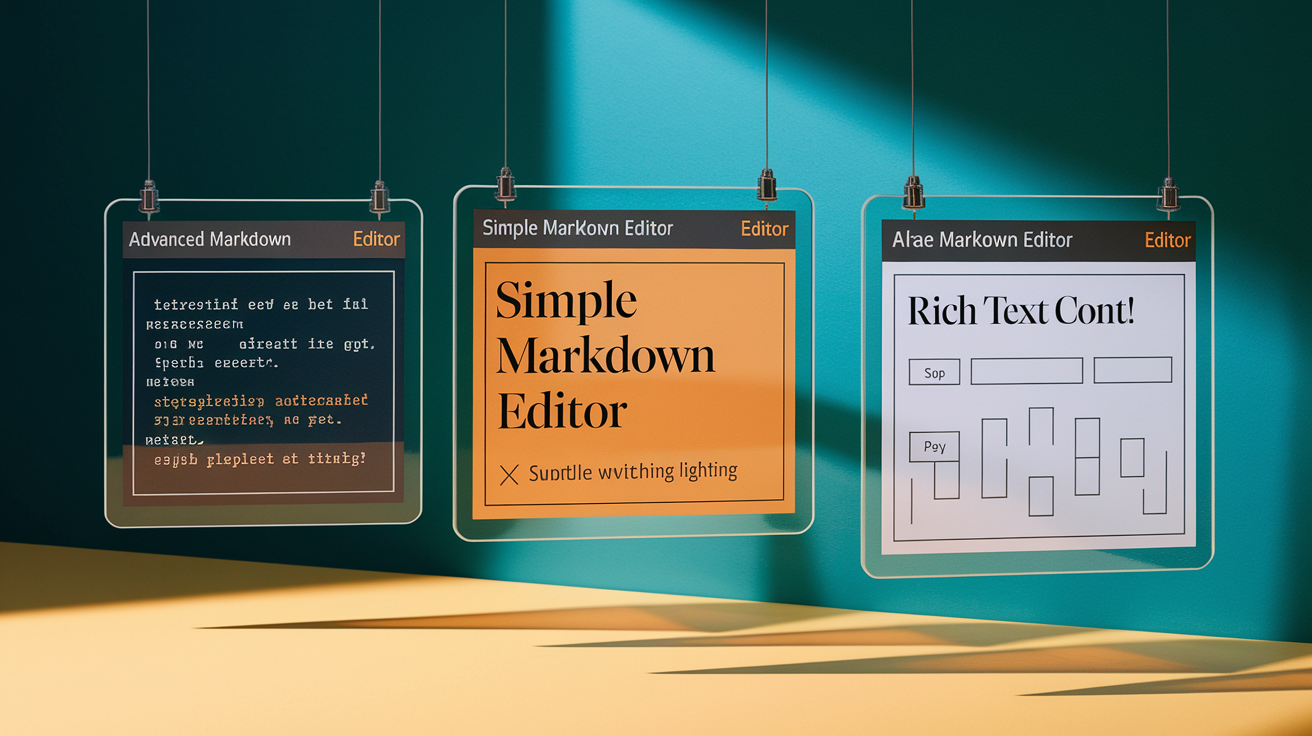
Advanced Markdown Editor gives you partial in-place formatting, an icon bar, and keyboard shortcuts, but it doesn’t support every Markdown convention you’d expect from something like Typora. Simple Markdown Editor is a toggle system. You write raw Markdown, then flip to preview. Think early GitHub wiki editors. Plus Editor acts like Gmail’s compose window, giving you rich-text controls without needing Markdown syntax knowledge. In the web app, Plus Editor overrides Chrome’s default CTRL+number shortcuts, so CTRL+1 applies a heading instead of switching to your first browser tab.
Switching between Markdown and rich-text editors mid-project is a trap. If you draft a note in Advanced Markdown, then switch to Plus Editor, you’ll see raw Markdown syntax rendered as plain text because the rich-text editor doesn’t auto-convert. Go the other direction (Plus to Markdown) and you get HTML tags dumped into your editor window unless you manually strip them. Pick your editor type when you create a note and stick with it.
Code editors available through extensions (like Vim-emulating variants) sit inside the same sandboxed frame. They inherit the same sync behavior and security restrictions but offer syntax highlighting and modal editing. Performance is smooth on desktop. On lower-end devices or under heavy extension loads, you might notice minor input lag in complex Markdown documents.
Workflow impacts and editor constraints:
- Plus Editor in Chrome conflicts with browser shortcuts. CTRL+1 applies a heading, not a tab switch.
- Markdown to rich text and rich text to Markdown switches never auto-convert formatting. Manual cleanup required.
- Advanced Markdown doesn’t support all extended Markdown syntax (definition lists or footnotes may render as plain text).
- Code editors sync settings across devices, so you can’t maintain different editor preferences per machine.
- Plain-text editor (free tier) has no shortcuts beyond OS defaults. Maximum simplicity, zero formatting.
- Security advantage: sandboxed editors can’t execute arbitrary code or access encryption keys, even if a rogue extension gets installed.
Technical Capabilities and Constraints of the Sandboxed Extension Model

Extensions talk through a message bridge that only exposes rendering and editing APIs. An editor extension can request the current note’s plaintext content, display formatted output, and send back edited text. It can’t read other notes, access the filesystem, or call native OS APIs. This architecture isolates every extension inside an iframe-like environment. The trade-off is clear: extensions can’t add global toolbar buttons, create background services, or integrate with external tools through direct file I/O.
The team spent roughly five years building this model. For developers, it means no access to Node.js filesystem modules, no ability to spawn child processes, and no direct network calls outside the controlled message channel. For users, it means extensions can’t leak encryption keys, delete files, or compromise the operating system, even if an extension author turns malicious or a supply-chain attack succeeds. The sandbox holds.
Extension depth and workflow restrictions:
- Extensions can’t write to disk or read local files outside the app’s encrypted database.
- Extensions can’t modify the global UI, toolbar, or sidebar. Only the editor pane inside the sandboxed frame.
- Extension settings sync automatically between web and desktop. Mobile doesn’t load extensions at all.
- Security advantage: if a malicious plugin gets installed, it can’t exfiltrate encryption keys or execute commands like rm -rf ~/ because it has no OS-level privileges.
Cross-Platform Performance and Device Sync Behavior in Standard Notes
Official clients exist for Windows, macOS, Linux, Web, Android, and iOS. Extensions only run on web and desktop, so mobile workflows revert to the plain-text editor no matter what your subscription tier is. Sync speed is fast. Edits made on a MacBook show up on a Windows 10 laptop within seconds. Extension settings also sync, meaning you can’t maintain different editor configurations per device.
The Android app mirrors the web interface with mobile adjustments but includes a navigation quirk: pressing Back after opening a note may display a Compose screen first, requiring a second Back press to return to the note list. iOS avoids this with a standard navigation bar. The Android app is highly rated, and synchronization is reliable.
Desktop apps on macOS, Windows, and Linux behave identically once extensions are enabled. The web client is feature complete and serves as the reference implementation. Performance across platforms is smooth for typical note-taking. Heavy Markdown documents (10,000+ words with many inline code blocks) may show minor input lag on older hardware, especially when multiple extensions are active.
Backup, Export, Import, and Data Portability in Standard Notes

Encrypted automatic backups (Extended only) can route to Google Drive or other cloud storage. Each backup package includes a JavaScript-based decryption tool, so if Standard Notes shuts down, you can decrypt your archive offline in any browser. This feature requires the Extended subscription. Two-factor authentication (TOTP-based, compatible with Google Authenticator or Authy) is also Extended only, adding an account-layer checkpoint.
Exporting individual notes to HTML or Markdown varies by editor. For Markdown, use the Fancy Markdown editor and switch to HTML next to the Preview button. For rich text, open Plus Editor’s code view, copy the HTML, and optionally run it through an HTML beautifier. OneNote import has no bulk automated tool. You must copy each OneNote page with CTRL+A then CTRL+C, paste into Plus Editor with CTRL+V for HTML fidelity, or use Notepad++ to extract the body HTML and paste into a Markdown editor for approximate conversion.
| Task | Method | Limitations |
|---|---|---|
| OneNote import (HTML) | CTRL+A, CTRL+C in OneNote; CTRL+V in Plus Editor | Manual per page; faithful representation but time-intensive for large notebooks. |
| OneNote import (Markdown) | CTRL+A, CTRL+C in OneNote; Paste Special in Notepad++; copy body HTML to Markdown editor | Approximate formatting conversion; requires manual cleanup; no bulk tool. |
| Encrypted backup | Automatic to Google Drive or similar (Extended); includes JS decryption tool | Requires Extended subscription; no free-tier backup automation. |
| Exporting rich text to HTML | Use Plus Editor code view; copy HTML; optionally beautify | Manual per note; no batch export for multiple notes at once. |
Subscription Tiers, Pricing Value, and Feature Unlocks

The free tier includes unlimited cloud-synced notes, access to all platform clients (web, desktop, mobile), and the plain-text editor. If your needs stop at secure, cross-platform plain-text note-taking, the free tier is sufficient. Extended subscription unlocks Advanced Markdown Editor, Simple Markdown Editor, Plus Editor (rich text), encrypted automatic backups, two-factor authentication (TOTP), and access to the full extension catalog (Folders, Quick Tags, Smart Tags, Listed publishing).
Extensions sync automatically between web and desktop clients once enabled under Extended, but mobile clients don’t load extensions no matter what your subscription is. This means mobile workflows always revert to plain text. If you rely heavily on Markdown preview or rich-text formatting on a phone, Standard Notes will feel limited.
Extended also gates the encrypted backup system with its bundled JavaScript decryption tool and the ability to enable TOTP-based 2FA. For users who need these features, the subscription pays for itself in reduced risk and improved recoverability. For users who only need secure plaintext notes, the free tier delivers strong privacy without cost.
Privacy Policy, Transparency, and Open-Source Trust Signals

The entire codebase, including all extensions, is open source and available on GitHub. This allows independent audits, community contributions, and self-hosting for users who want full control. Self-hosting is encouraged, not just tolerated. Documentation and Docker images are provided. The sandboxed extension model stops plugins from accessing encryption keys, filesystem, or OS APIs, closing supply-chain attack vectors that exist in permissive plugin systems.
Competing tools sometimes advertise “local-first” or “privacy-first” branding while letting plugins run with full application permissions. Standard Notes avoids this gap by enforcing sandbox isolation. The team’s public stance is that privacy requires mission, culture, code, and operations, not just local storage.
Core trust signals:
- Complete source code published under open-source licenses.
- Self-hosting supported with official documentation and container images.
- Sandboxed extension architecture prevents key exposure and OS-level exploits through plugins.
Competitor Comparison: Standard Notes vs Privacy-First and Cloud-First Apps

Obsidian offers a permissive plugin model with thousands of community extensions, but plugins run with full filesystem and application access. This means a malicious or compromised plugin could access encryption keys (if vault encryption is enabled) or delete files. Logseq markets itself as “privacy-first” but uses a similar permissive extension model. Plugin behavior isn’t sandboxed. OneNote lacks end-to-end encryption entirely. Microsoft holds the keys. Google Keep is unencrypted and designed for basic lists, not sensitive notes.
Standard Notes trades extension power for security. You can’t install a plugin that integrates directly with your file manager or runs custom background scripts, but you also eliminate the risk of supply-chain attacks through the plugin ecosystem. Obsidian and Logseq are stronger choices for users who need deep filesystem integration and are comfortable auditing or trusting plugin authors. Standard Notes is the better fit for users who prioritize provable privacy and who can live within the constraints of sandboxed editors.
Evernote and Notion are cloud-first services with proprietary encryption (if any). Neither offers client-side, zero-knowledge architecture. Both are better suited to teams who need real-time collaboration and rich media embedding. Standard Notes doesn’t support collaborative editing. Published notes through Listed are read-only copies. Rich media support is minimal compared to Notion’s databases and embedded views.
Real-World Use Cases and Recommended User Profiles for Standard Notes

Standard Notes fits secure personal journaling, therapy notes, outlines, developer snippets, and private drafts. One reviewer recommended it to a therapist for patient journaling because the encryption model ensures the service provider can’t access session notes. The free tier works well for quick writing, brain dumps, and cross-device text capture. Extended subscription becomes necessary for users who need Markdown preview, rich-text editing, or automatic encrypted backups.
The platform is less suited to collaborative workflows. There’s no shared editing, only read-only publishing through Listed. Heavy OneNote users face manual migration friction, copying pages one at a time. Mobile users who depend on rich-text formatting or extensions will find the mobile experience limited, since extensions don’t run on mobile clients.
Ideal user profiles:
- Privacy-conscious writers, journalists, and researchers who need client-side encryption and zero-knowledge storage.
- Therapists and patients who require provable confidentiality in digital notes.
- Developers who value open-source code, self-hosting, and sandboxed extension security.
- Individuals who need cross-platform plaintext note-taking without recurring costs (free tier).
- Users willing to subscribe for advanced editors, encrypted backups, and 2FA, who accept reduced extension power in exchange for stronger security guarantees.
Final Words
Standard Notes keeps your notes private with client-side, zero-knowledge encryption, sandboxed extensions, and a clear editor split that affects workflows and portability.
We looked at encryption architecture, key handling, editor behavior, the sandboxed extension model, cross-platform sync, backups, pricing, and transparency so you can weigh trade-offs quickly.
If you want strong, simple privacy for journaling, developer notes, or sensitive drafts, this Standard Notes review: end-to-end encryption editors and extensions shows it’s a solid choice, secure, focused, and ready to use.
FAQ
Q: Are Standard Notes really secure and can hackers access the notes app?
A: The Standard Notes app is designed to be secure, using full client-side zero-knowledge encryption and keys that stay on your device, and extension sandboxing prevents key access. Hackers can read notes only if your device or password is compromised.
Q: What is the best alternative to Standard Notes?
A: The best alternative to Standard Notes depends on your priorities: use Joplin for end-to-end encryption and self-hosting, or Obsidian for local-first workflows and plugin flexibility, noting Obsidian plugins can access files.
Q: Is Standard Notes free?
A: Standard Notes is free with unlimited notes and a plain-text editor; the Extended subscription unlocks advanced editors, encrypted backups, two-factor authentication, and publishing features.