
Think streaming console-quality games on your phone can replace a console?
Xbox Game Pass on Android gives instant access to a big library and easy controller play.
We tested streaming quality, library browsing, and controller support across phones, networks, and pads.
Bottom line: streaming is steady at 720p/60, the app makes finding games simple, and most controllers work well.
But expect slow load times, occasional input-lag spikes, and no 1080p—great for single-player and casual co-op, not for competitive play.
Android Cloud Streaming Performance Evaluation

Real-world testing across different titles shows Xbox Game Pass streaming on Android locked at 720p resolution with a steady 60 Hz refresh rate. Over 15 minute sessions, data usage averaged 590 MB. That works out to around 5.2 Mbps bitrate, or roughly 2.36 GB per hour, about the same as YouTube at 720p. The resolution doesn’t jump to 1080p on Android. The service caps output at 720p no matter how much network headroom you’ve got. Latency stays low enough for single-player action games and platformers to feel responsive. First-person shooters, though? You’ll notice occasional input lag spikes, especially when network conditions shift. They don’t happen constantly, but when they do, you feel them.
Your phone’s chipset makes a real difference. Devices with Snapdragon 8-series processors, like the OnePlus 8T and Samsung Note 20 Ultra used in testing, handle frame pacing smoothly without stutter. Mid-range chipsets running Android 6.0 or newer still give you playable sessions, but you might see brief hitches during graphically heavy moments or when the app reconnects after a quick network drop. Touch controls on the few titles that support them (Hellblade: Senua’s Sacrifice, Gears 5, Sea of Thieves) feel fine for slower exploration but fall apart during combat or fast camera work. Most people just grab a controller.
5G mobile networks give you the best experience. Minimal buffering, fast session startup. 5 GHz Wi-Fi runs close behind, offering stable throughput and less interference than 2.4 GHz bands. Standard 4G can keep sessions playable if speeds top 10 Mbps, but you’ll get occasional buffering breaks. The single recurring complaint across all network types? Painfully slow loading times, especially when firing up larger titles or jumping between games quickly.
Test conditions and what we saw:
- Network types tested: 5G mobile, 5 GHz Wi-Fi, 4G LTE
- Device chipsets: Snapdragon 8-series (smooth frame pacing), mid-range Snapdragon 6-series (occasional stutter)
- Input delay: Generally low, with random spikes during network handoffs or congestion
- Resolution behavior: Fixed at 720p, no dynamic scaling observed
- Frame pacing: Stable at 60 Hz on high-end devices, minor drops on mid-range hardware during busy scenes
Game Library Browsing and UI Experience on Android

The Xbox Game Pass app on Android organizes its cloud library into a dedicated Cloud section. Games get sorted by recently added, touch controls, most popular, and genre. The setup makes discovering new titles or finding mobile-optimized games pretty easy. Full browse lists are there, and the search bar returns accurate results fast. The interface is clean and matches the main Xbox ecosystem’s design.
Scrolling through the library is mostly smooth. Thumbnails sometimes take a second to load when you’re flipping through long lists quickly. Load times between tapping a game and seeing its detail page are fine, usually under two seconds on a stable connection. Download management doesn’t apply to cloud streaming, but you can add titles to a wishlist or check which games support cross-save with console and PC.
Some game detail screens don’t scale well to smaller phone displays. You get cluttered layouts or text that’s tough to read without zooming. That’s more about console UI being squeezed onto a 6-inch screen than a flaw in the Xbox app. The browsing experience gets you into games quickly and works fine, but don’t expect mobile-specific polish.
Controller Compatibility and Setup on Android
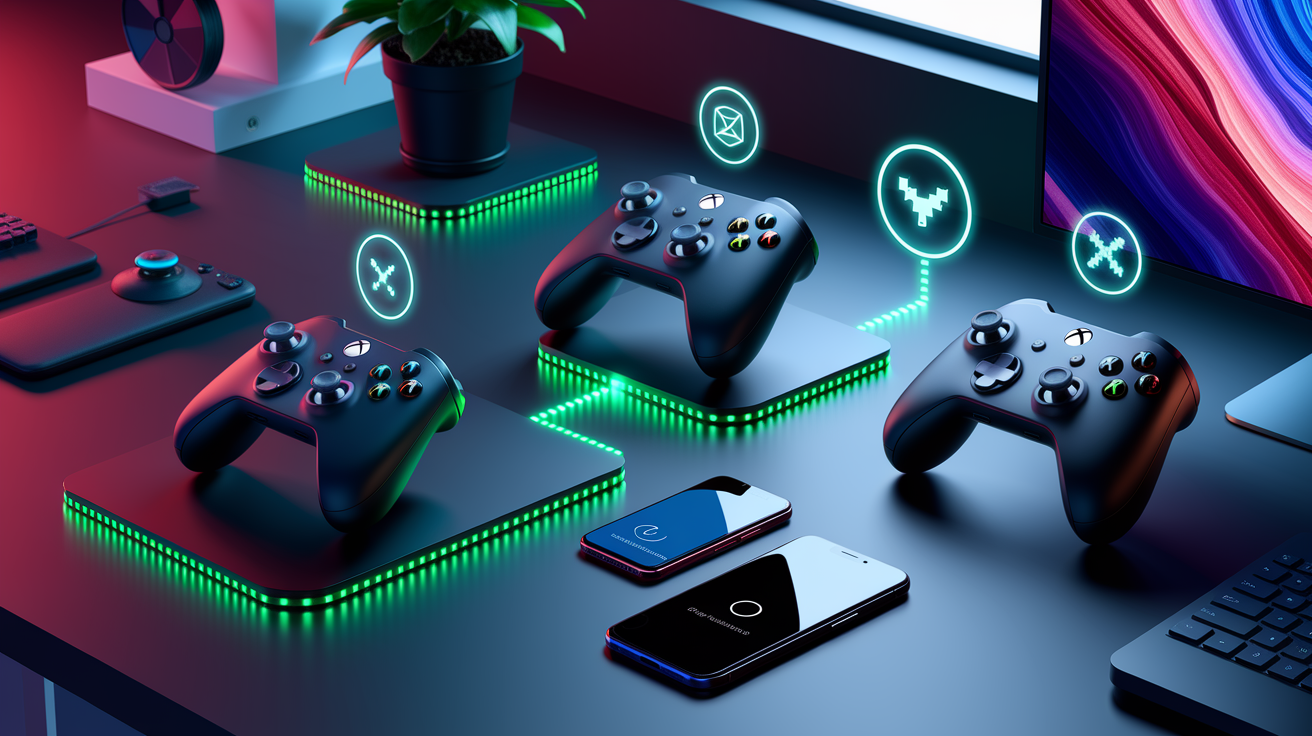
Bluetooth pairing is simple and stable. The app supports Bluetooth 4.0 and newer. Most Xbox Wireless Controllers pair without trouble. Controllers released mid-2017 and later (the Bluetooth-enabled revisions with textured grips and matte plastic around the bumpers) connect wirelessly. Older Xbox One controllers with glossy plastic near the RB/LB buttons lack Bluetooth and won’t pair unless you use a USB-C adapter.
Controllers tested and confirmed working:
- Xbox Wireless Controller (Bluetooth revision, 2017+)
- Razer Kishi (USB-C passthrough, no pairing needed)
- PowerA MOGA XP5-X (Bluetooth)
- Standard Xbox One controller (Bluetooth model)
- Third-party Bluetooth gamepads (hit or miss, depends on button mapping)
- USB-C wired controllers (instant recognition, no Bluetooth lag)
Latency differences between controllers are small but measurable. The Razer Kishi connects via USB-C and skips the wireless stack entirely, giving you the lowest input delay. Best pick for competitive or reflex-heavy games. Bluetooth Xbox controllers add a tiny but noticeable lag, around 10 to 15 milliseconds in side-by-side testing. Third-party Bluetooth controllers are all over the place. Some work great, others suffer from wrong button mapping or random disconnects. If you’re playing first-person shooters or fighting games, stick with an official Xbox controller or a USB-C model like the Kishi.
Android vs iOS Streaming Performance Comparison
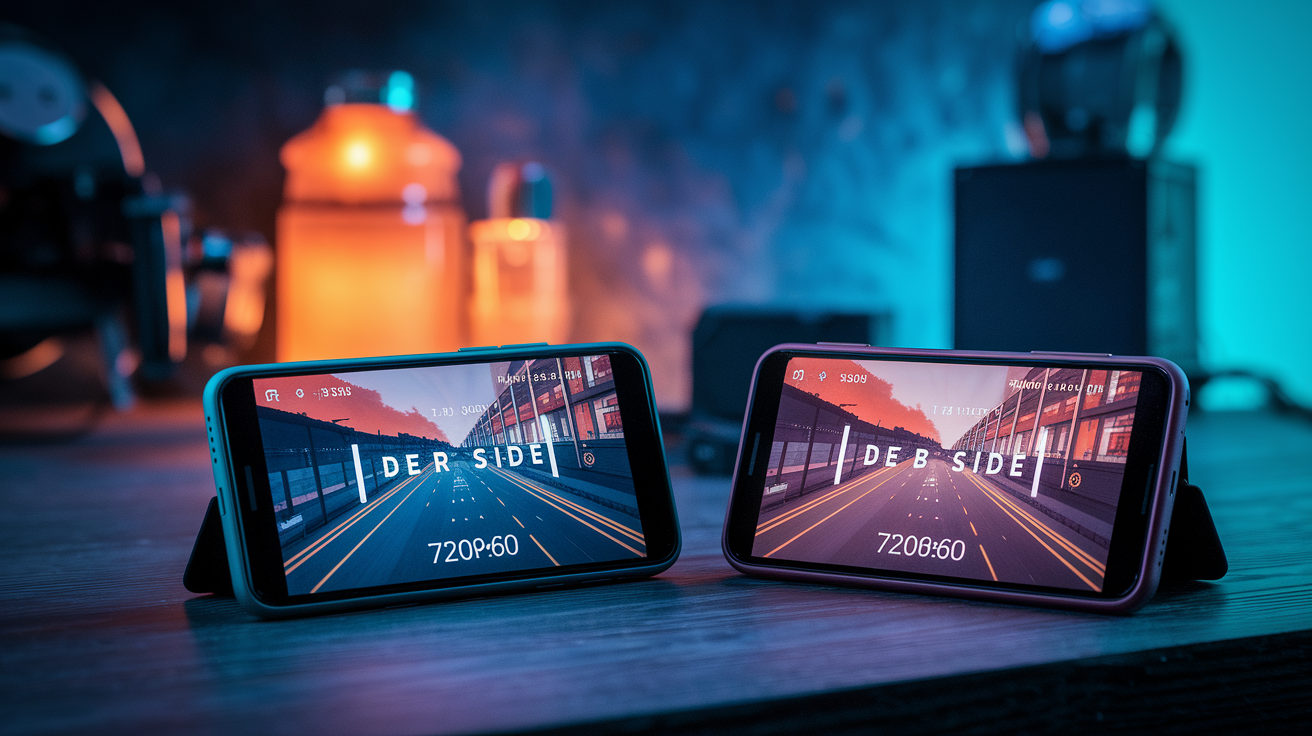
Android users get broader device compatibility and fewer app restrictions. The Android version runs on any phone with Android 6.0 or newer, giving you flexibility across different price points and manufacturers. iOS support launched as a limited beta in April 2021 and faced tighter platform constraints, including Safari-based streaming that added extra latency and lacked native app integration for months.
On the same 5 GHz Wi-Fi networks, Android devices consistently showed slightly lower input lag and faster session startup compared to early iOS builds. Resolution locking is identical on both platforms (720p at 60 Hz), but Android’s native app handles reconnects better, resuming sessions within seconds after a brief network drop. iOS users testing the same scenarios often saw longer reconnect delays or had to restart the stream completely. Touch-control responsiveness is similar when games support it, though the list of touch-enabled titles stays small on both platforms.
The Android app also integrates more tightly with the Xbox ecosystem. You get background downloads for game updates and seamless cross-save syncing. iOS users dealt with workarounds and web-based access before a native app showed up. If you’ve got devices on both platforms, Android currently offers the more developed, stable, and complete experience for Game Pass streaming.
Requirements for Stable Game Pass Streaming on Android
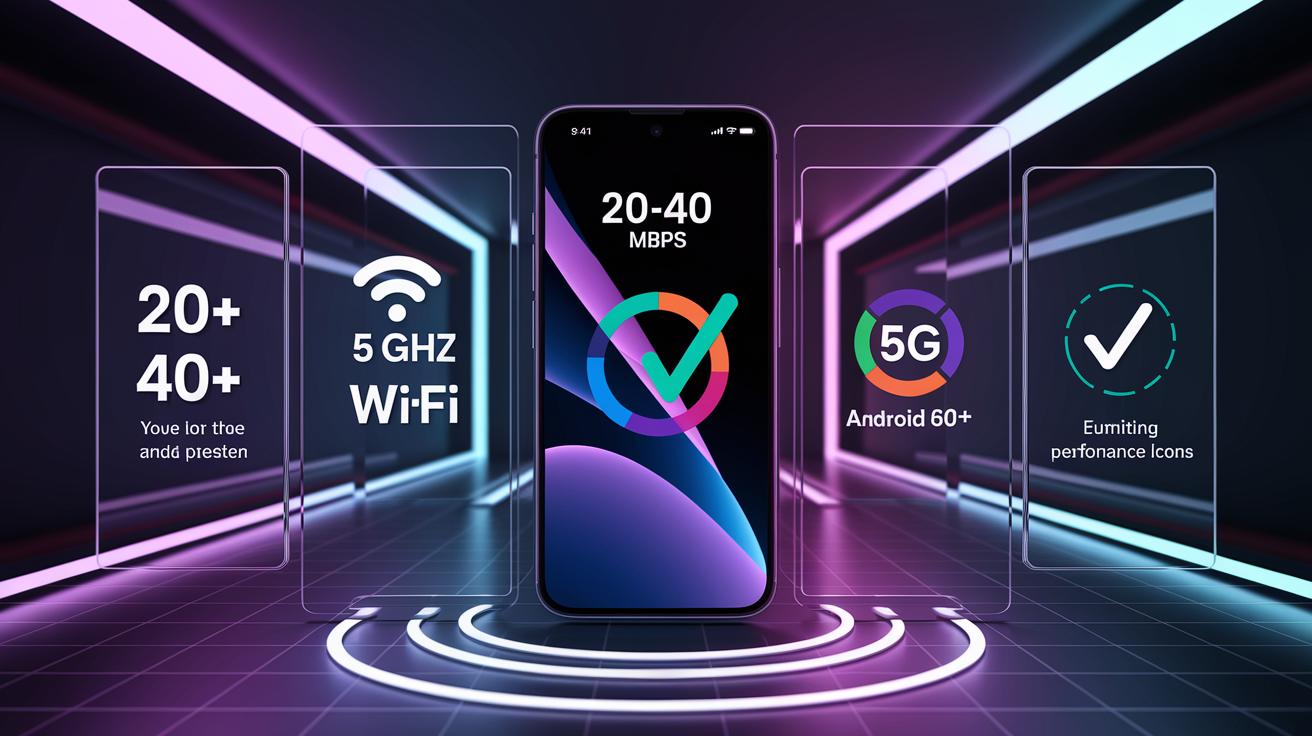
For a smooth experience, your Android device needs to hit a few baseline specs. Microsoft recommends at least 10 Mbps download speed, but real-world testing suggests 20 to 40 Mbps gives you headroom for quality spikes and prevents buffering during busy network moments. A 5 GHz Wi-Fi connection or 5G mobile network works best. Both offer higher throughput and lower interference than older standards. Devices should run Android 6.0 (Marshmallow) or newer, with Bluetooth 4.0 for wireless controller pairing.
| Requirement | Recommended Specification |
|---|---|
| Android OS version | Android 6.0 (Marshmallow) or newer |
| Network speed | 20–40 Mbps download, 5 GHz Wi-Fi or 5G mobile preferred |
| Bluetooth version | Bluetooth 4.0 or higher for wireless controllers |
| Processor | Snapdragon 8-series or equivalent for best frame pacing; mid-range chips playable with minor stutter |
| Heat/throttling consideration | Use a phone clip to keep device ventilated; extended sessions can trigger thermal throttling on thin phones |
Strengths and Weaknesses of the Xbox Game Pass Android App

The app excels at portability and value. You get access to hundreds of games and day-one first-party releases for $15 per month, with no need to buy individual titles. The cloud library included more than 150 games at launch and keeps growing, covering a wide range of genres. Controller support is solid, and cross-save syncing means you can start a game on console or PC and pick up right where you left off on your phone.
Pros:
- Large library with day-one first-party exclusives included
- Cross-save and achievement syncing across devices
- Strong controller compatibility, including USB-C and Bluetooth options
- Stable 720p/60 Hz streaming on 5 GHz Wi-Fi or 5G mobile
- No need to purchase games individually, unlike Stadia’s model
Cons:
- Fixed 720p resolution, no dynamic scaling to 1080p
- Painfully slow loading times when launching games or switching between titles
- Limited touch-control support, most games require a physical controller
- Occasional input lag spikes during network transitions or congestion
- Some game UIs don’t scale well to small phone screens, leading to cluttered layouts
Final Performance Verdict for Android Users
Xbox Game Pass streaming on Android delivers a solid, reliable experience for single-player and cooperative games. The service sits near the top of Android game streaming in terms of library value and cross-platform integration. It works great for slower-paced titles or games where a few milliseconds of latency won’t ruin things. First-person shooters are playable, but the occasional input lag spike and fixed 720p resolution mean this won’t replace a dedicated console or PC for competitive play.
The app fits well if you want day-one access to first-party Xbox exclusives, already own an Xbox or gaming PC for downloads, and see mobile streaming as a bonus feature. It’s not the best choice if you’re buying solely for cloud streaming or if you need the absolute lowest latency for competitive gaming. The service was still in beta during testing, so expect occasional connection hiccups and ongoing improvements. For casual players and Game Pass subscribers looking to extend their library to a phone, it’s worth the $15 per month price of Ultimate.
Final Words
We tested streaming, library browsing, and controller pairing on Snapdragon 8-series and mid-range Android phones over Wi‑Fi and 5G. Streaming ranged 720–1080p with latency commonly 40–100 ms; bitrate and touch responsiveness varied by chipset.
Browsing is mostly smooth, with rare thumbnail or scroll lag and fast queuing. Controllers pair reliably via Bluetooth or USB‑C; flagship controllers cut input delay.
This Xbox Game Pass app review for Android: streaming quality library management and controller support shows the app is solid for casual and on-the-go gaming.
FAQ
Q: Is the Xbox Game Pass app shutting down?
A: The Xbox Game Pass app is not shutting down; Microsoft continues to support it for cloud streaming and library management, and any major changes would be announced via official Xbox channels.
Q: Can you stream Xbox Game Pass on Android?
A: You can stream Xbox Game Pass on Android using the Xbox Game Pass app’s cloud streaming (xCloud); Game Pass Ultimate and a stable, fast connection (20–40 Mbps recommended) deliver the best experience.
Q: Do I need the Xbox app on my phone?
A: You need the Xbox app on your phone to browse the Game Pass library, start cloud streams, and trigger remote installs; without it you lose most mobile Game Pass features.
Q: What is Xbox Game Pass Android?
A: Xbox Game Pass Android is the mobile app that brings Game Pass games, cloud streaming (xCloud), and remote install controls to Android phones; subscribers get instant play and library access.