
Think switching to Game Mode fixes every lag problem?
You wouldn’t be alone, but it’s not that simple.
Game modes shape how you play: solo stories, chaotic multiplayer, sandbox building, or high-stakes survival.
System settings called Game Mode on Windows, TV Game Mode, and mobile launchers also change performance and input lag.
This post explains common game mode types and gives clear, practical Windows and display tweaks to make games feel smoother.
By the end you’ll know which mode fits your goals and which settings actually help your PC play better.
Understanding Gameplay Modes
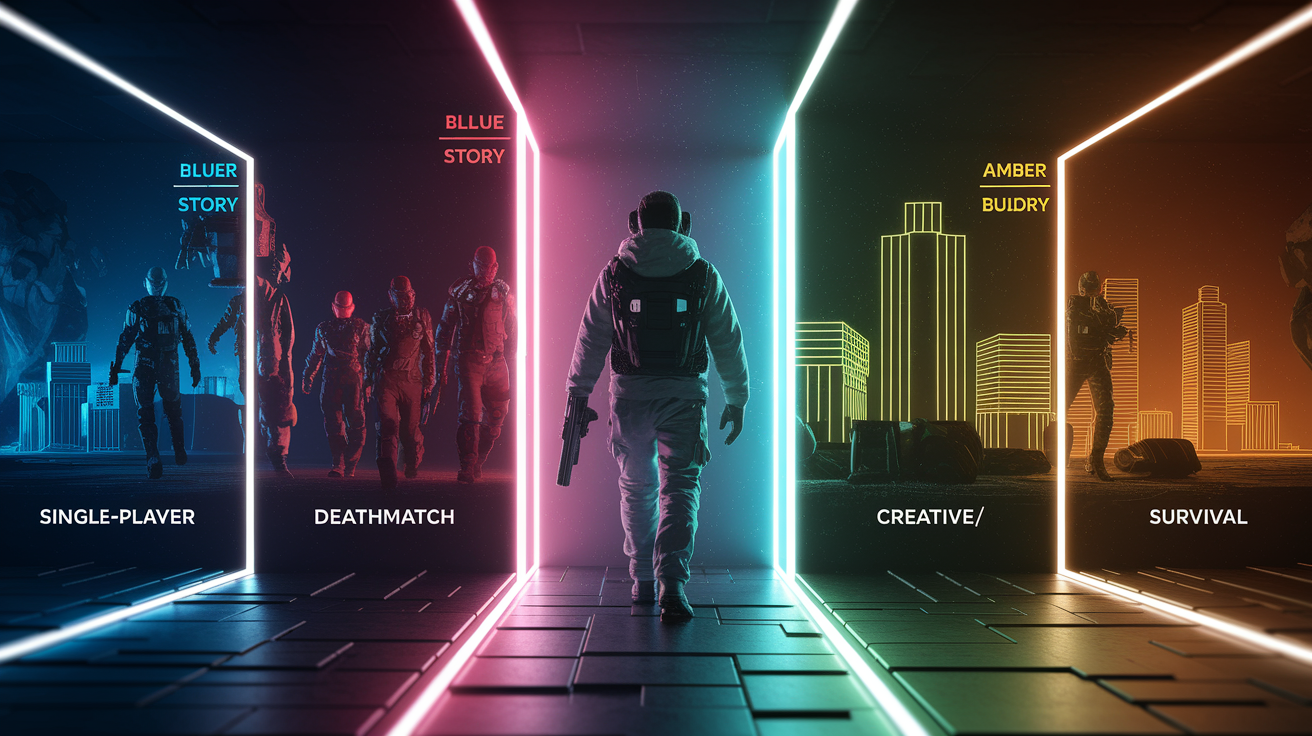
Gameplay modes change how you interact with a game world, who you’re playing with, and what you’re actually trying to do. Developers pack multiple modes into one game so you get different experiences without buying separate titles. Maybe you want a solo story campaign one day, fast matches against real people the next, or just open-ended building with no pressure.
Each mode rewrites the rules, the pacing, the stakes. A single-player campaign locks you into a linear story with scripted events. A multiplayer deathmatch throws you into a map with ten other people and one goal: rack up the most eliminations in five minutes. Survival modes add resource scarcity and permadeath risk, so you’re planning every move. Creative or sandbox modes strip away most constraints and let you build, experiment, or set your own challenges. The mode you pick decides whether you’re cooperating, competing, exploring alone, or just messing around.
TV Game Mode and Windows Game Mode also use the term “game mode,” but those refer to hardware and OS settings that cut input lag or prioritize system resources. Those are separate features meant to make any game run smoother or feel snappier. We’ll cover both later in this guide.
Common gameplay mode examples:
- Single-player – You play alone, usually following a story or completing set objectives at your own pace.
- Campaign – A structured series of missions or levels, often with a narrative thread tying them together.
- Multiplayer – You play with or against other people in real time, either online or locally.
- Creative/Sandbox – Open-ended play with few rules, focused on building, experimenting, or exploring without fixed win conditions.
- Survival – Resource management and staying alive are the main goals, often with permadeath or harsh penalties for failure.
Game Mode Settings for Windows Performance Optimization

Windows Game Mode is a system setting that tells your PC to prioritize gaming performance. It does this by reducing background activity and allocating more CPU and GPU resources to the game you’re running. It won’t turn a struggling system into a powerhouse, but it can smooth out frame drops caused by background tasks. Here’s how to turn it on:
- Press Windows key + I to open Settings.
- Click Gaming in the sidebar.
- Select Game Mode from the menu.
- Toggle Game Mode to On.
- Press Windows key + G to open the Game Bar overlay while in a game.
- Confirm that Game Mode is enabled in the Game Bar’s capture settings if you plan to record or stream.
Performance gains from Windows Game Mode are usually small. You’re looking at 1% to 5% higher average frame rates in most titles. Some workloads, especially on older CPUs with many background processes, can see up to roughly 10% improvement. Results vary widely based on your hardware, drivers, and what else is running. On many modern systems with few background apps, you might notice no measurable difference at all.
Quick optimization tips to pair with Game Mode:
- Update GPU drivers – Check for the latest WHQL or studio drivers from Nvidia or AMD every one to three months, or before major game launches.
- Switch to High Performance power plan – Open Control Panel > Power Options and select High Performance or Ultimate Performance if available.
- Close unnecessary background apps – Open Task Manager (Ctrl + Shift + Esc), switch to the Processes tab, and end tasks that aren’t needed during gaming.
- Limit Windows notifications – Go to Settings > System > Notifications and disable pop-ups during game sessions to prevent interruptions.
Popular Game Modes Found in Modern Games
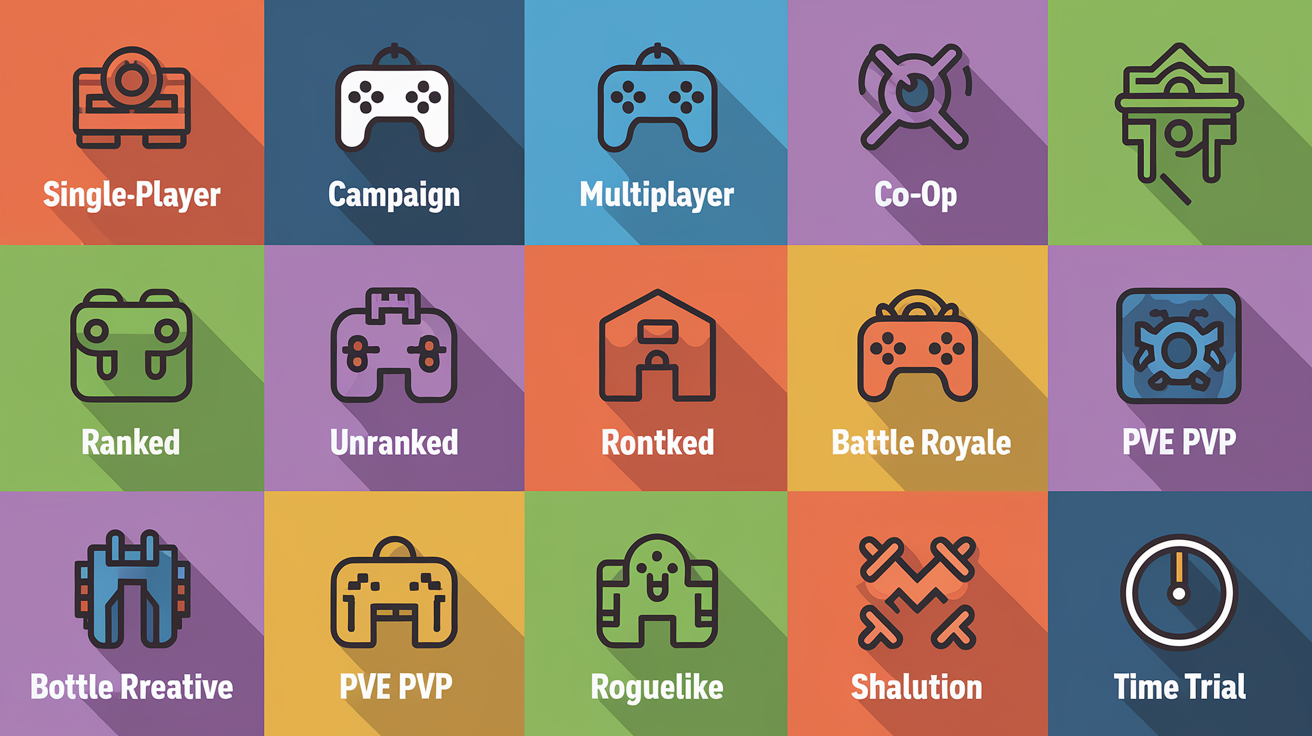
Modern games ship with a bunch of different modes to appeal to different play styles, time constraints, and social preferences. Some players want a story-driven solo experience. Others want to test their skills in ranked competition. Many just want to relax in a low-pressure creative space. Developers build multiple modes into a single game so one purchase can serve all those needs.
1. Single-Player / Campaign – You progress through missions or a story alone. Objectives are scripted, and you can pause or save whenever you want. Risk is usually low since you can retry failed missions.
2. Multiplayer – Matches against or alongside other human players. Session length and objectives vary widely, from quick five-minute rounds to hour-long strategy games.
3. Co-op – You and one or more friends work together against AI enemies or shared objectives. Progress may or may not carry over between sessions depending on the game.
4. Ranked / Competitive – Matchmaking assigns you a skill rating (MMR) and pairs you with similarly skilled players. Wins and losses affect your rank and unlock seasonal rewards.
5. Unranked / Casual – Same gameplay as ranked but without visible rating changes or penalties for leaving. Lower pressure, often used for practice or warm-up.
6. Battle Royale – Large player counts (often 50 to 150) drop onto a shrinking map. Last player or team standing wins. High risk, one life per match.
7. Survival – Resource gathering, crafting, and staying alive are the main goals. Permadeath or severe penalties for dying are common. Sessions can last minutes to hours.
8. Sandbox / Creative – Free-form building or exploration with unlimited resources and no fail state. Players set their own goals or recreate game mechanics for fun.
9. PvE (Player vs. Environment) – You fight AI-controlled enemies, often in waves or scripted encounters. Difficulty can scale with player count or chosen settings.
10. PvP (Player vs. Player) – Direct competition against other humans in arenas, maps, or open worlds. Skill and strategy determine the winner more than progression or gear.
11. Roguelike / Roguelite (Permadeath) – Procedurally generated runs where dying resets most or all progress. Each attempt is meant to teach you something for the next run.
12. Time Trial / Arcade / Challenge – Short, score-focused sessions with strict rules or time limits. Leaderboards and high scores are the main incentives.
If you’re new to a game, start with unranked or co-op modes to learn mechanics without competitive pressure. If you want a story, pick campaign or single-player. If you have limited time, try arcade or battle royale modes that wrap up quickly. Survival and sandbox modes suit players who enjoy open-ended goals and long sessions. Ranked modes are for players who want structured competition and measurable improvement over time.
TV Game Mode for Lag Reduction
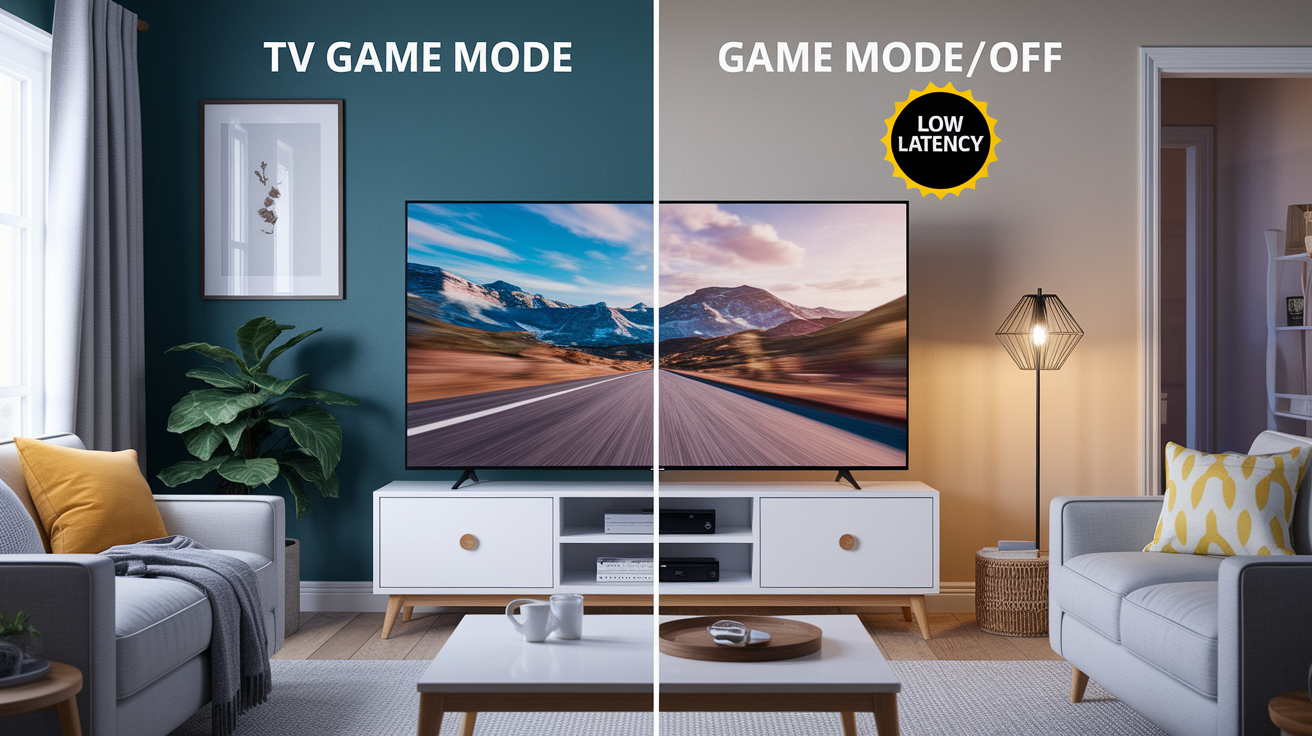
Input lag is the delay between pressing a button on your controller and seeing the corresponding action on screen. Wireless controllers add a few milliseconds of latency as the signal travels over Bluetooth or proprietary wireless. TV image processing adds more delay, often much more, because the TV is analyzing and modifying each frame before displaying it. Motion smoothing, noise reduction, and sharpening filters can stack up to dozens of milliseconds of lag, making fast-paced games feel sluggish or unresponsive.
TV Game Mode disables most of these post-processing effects to prioritize speed over cosmetic polish. When you enable it, the TV stops applying motion smoothing (the “soap opera effect” that interpolates extra frames), noise reduction (which softens grain and compression artifacts), dynamic contrast adjustments, and other filters that require buffering or frame analysis. The result is a picture that looks “less polished” because those enhancements are turned off, but inputs register faster and the game feels more responsive. Roku TV partners like TCL describe Game Mode as turning off inessential processing to reduce latency, a straightforward trade of visual refinement for responsiveness.
Most modern TVs and older models going back over a decade include a Game Mode or similar low-latency preset. It’s almost always reversible. You can switch it off if you prefer the processed look. If you’re playing single-player games where timing isn’t critical, you might prefer the smoother motion and sharper image. For competitive or reaction-based games, Game Mode usually makes a noticeable difference.
Picture-processing features typically disabled in TV Game Mode:
- Motion smoothing (frame interpolation)
- Noise reduction (temporal and spatial filtering)
- Dynamic contrast or local dimming adjustments
- Sharpening and edge enhancement
Mobile Game Mode and Game Launcher Tools
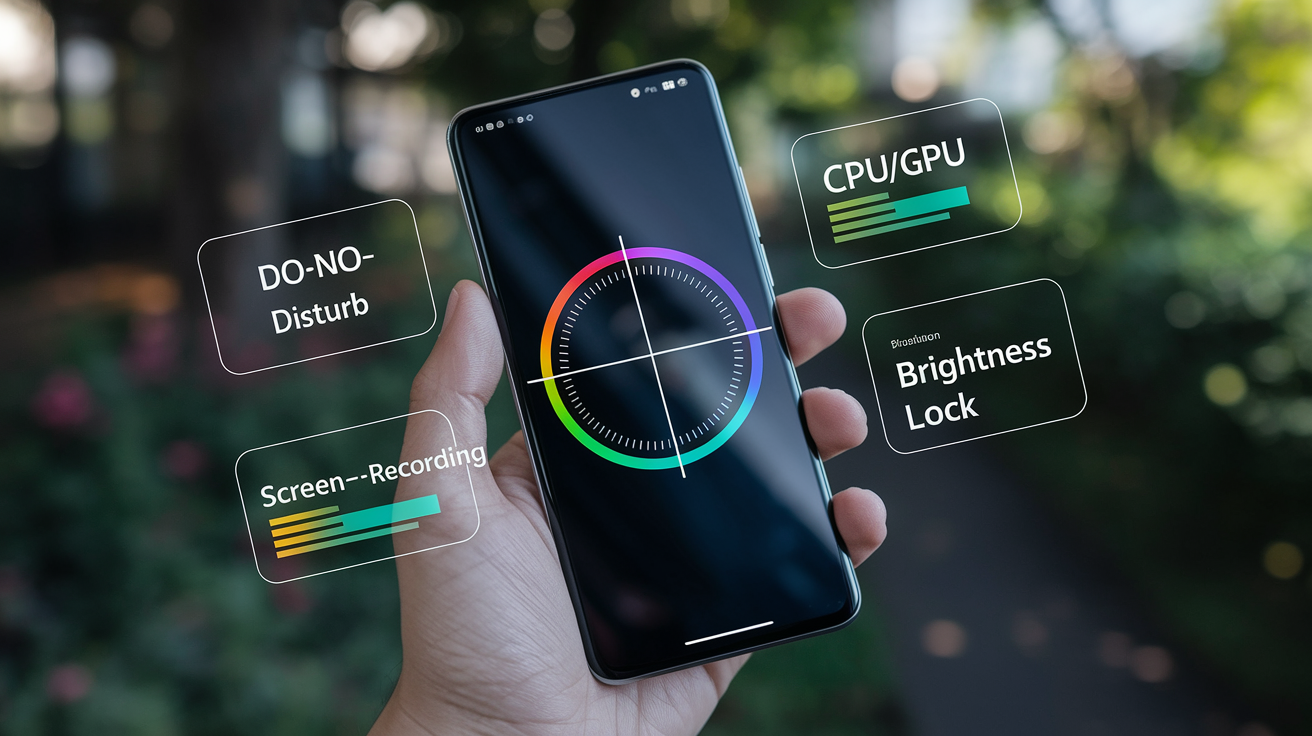
Smartphones offer game mode features that reduce distractions and optimize performance while you play. Most Android and iOS devices include a built-in toggle or app that blocks calls, hides notifications, and adjusts screen brightness or CPU/GPU throttling to keep frame rates stable. Third-party apps expand these features with extras like screen recording, crosshair overlays for shooters, and network optimizers that prioritize gaming traffic over background downloads.
One example is the “Game Mode” app by devayu labs, version 0.1.0-release-rc163, which runs on Android 13.0 and up. At 15.47 MB, it bundles a Game Launcher (a personalized space to organize and launch your games), Screencast (screenshot and screen recording tools), a Brightness Controller, a Crosshair overlay, Sound Viz (a sound visualizer), and a Net Optimizer to reduce ping and packet loss. The app passed a comprehensive security scan via VirusTotal technology and is labeled virus-free, malware-free, and spyware-free by its security partners, with the scan result marked “Clean.”
Typical mobile game mode features:
- Do-not-disturb mode – Blocks incoming calls and mutes notifications during gameplay.
- Performance profiles – Adjusts CPU/GPU clock speeds and RAM allocation to reduce thermal throttling.
- Screen recording and screenshots – Built-in capture tools with overlay controls for quick sharing.
- Brightness lock – Prevents auto-brightness changes that can distract or affect visibility.
- Network optimizer – Prioritizes game traffic and can route connections through faster DNS servers.
- Crosshair and HUD overlays – Adds aiming reticles or stat displays on top of the game.
When installing any game mode app, review the permissions it requests. Overlay permissions let the app draw on top of other apps (needed for crosshairs or recording controls). Screen-capture permissions allow recording and screenshots. Internet access is required for network optimization and sometimes for analytics. Stick to apps with verified security scans and high user ratings, and uninstall any app that requests unnecessary permissions like contacts or SMS access.
Comparing Mobile Game Mode Apps

Not all game mode apps offer the same features or performance. Some focus on specific tasks while others try to do everything. Checking file size, user ratings, and core features helps you pick the right tool without installing three apps that overlap. Smaller apps load faster and use less storage, but they might skip advanced features like network tuning or custom overlays.
| App Name | Core Feature | File Size / Rating |
|---|---|---|
| Game Mode (devayu labs) | Game Launcher, Screencast, Crosshair, Net Optimizer | 15.47 MB / 4.7 |
| Gaming Mode – No Calls & Notifications | Do-not-disturb, call blocking | Varies / High rating |
| iGamer – Gaming Mode | Performance boost, overlay tools | Varies / High rating |
Choose an app based on what you need most. If you only want to block calls and notifications, a lightweight do-not-disturb app is enough. If you stream or create content, prioritize apps with reliable screen recording and minimal performance overhead. If you play competitive shooters on mobile, look for crosshair overlays and network optimizers. Always check recent reviews to confirm the app works on your Android version and doesn’t introduce frame drops or crashes during gameplay.
Performance, Latency, and Matchmaking Considerations in Game Modes

Competitive game modes rely on low latency, fair matchmaking, and clear win conditions to keep matches skill-based and engaging. Input lag, network ping, and inconsistent frame rates all degrade your ability to react and execute, which is why players combine TV Game Mode, Windows Game Mode, and wired connections when playing ranked. Matchmaking rating (MMR) systems pair you with opponents of similar skill, but if your latency is high or your hardware can’t maintain stable frame rates, you’ll lose fights you should have won, and your MMR will drop unfairly.
Game modes with leaderboards or seasonal rewards add scoring systems and objective design that reward consistency and precision. A battle royale mode might score eliminations, survival time, and placement equally, while a ranked arena shooter weights kill-death ratio and round wins. Dedicated servers with low ping and anti-cheat enforcement matter more in these modes than in casual or single-player content. Consoles like the PlayStation 5 and Xbox Series X feature lower controller-to-console input latency than older hardware, but if your TV is still applying motion smoothing and noise reduction, you’re adding tens of milliseconds of delay that erase those console improvements.
Team-based modes introduce balancing algorithms that try to create evenly matched teams from the available player pool. If you’re in a party with friends of different skill levels, the matchmaking system will attempt to average your MMRs and find opponents with a similar combined rating. Dynamic difficulty in PvE modes adjusts enemy health, damage, or spawn rates based on team performance, while AI difficulty tuning in single-player campaigns lets you choose static difficulty levels that don’t change mid-mission.
Factors that affect competitive performance in game modes:
- Latency – Total delay from input to server response, including controller lag, TV processing, and network ping.
- MMR and matchmaking pools – Skill-based pairing ensures fair competition but requires enough players online in your region.
- Scoring and win conditions – Clear, consistent rules for what counts as a win or loss, with no ambiguity.
- Objective design – Secondary goals (capture points, bomb plants) that add strategic depth beyond simple eliminations.
- Netcode and tick rate – Server update frequency and how the game reconciles player positions and actions across laggy connections.
Troubleshooting Game Mode Issues
If enabling Windows Game Mode or TV Game Mode doesn’t improve responsiveness or frame rates, the issue often lies in conflicting settings, outdated drivers, or background processes that Game Mode can’t override. Start by confirming the toggle is actually on. Reopen Settings > Gaming > Game Mode on Windows and verify the switch is green. On your TV, navigate to Picture settings and confirm the preset is set to Game Mode or Low Latency Mode. Some TVs require you to enable Game Mode separately for each HDMI input.
1. Toggle Game Mode off and back on, then reboot your PC or TV. Changes don’t always apply instantly, and a restart forces the new profile to load.
2. Open Game Bar with Windows key + G while in-game and check if overlays or capture settings are interfering. Disable Game DVR background recording if you’re not streaming or recording.
3. Monitor CPU and GPU usage in Task Manager (Ctrl + Shift + Esc) during gameplay. If either is consistently at 100%, Game Mode won’t help because your hardware is already maxed out. Close background apps or lower in-game graphics settings.
4. Disable overlays from Discord, GeForce Experience, or other apps. These can conflict with Game Mode and add their own frame-time spikes.
5. Roll back recent driver updates if performance got worse after an update. Use Device Manager to uninstall the current GPU driver and reinstall the previous stable version.
6. Test the game in borderless windowed mode vs. fullscreen. Some games perform better in one mode or the other, and Game Mode behaves differently depending on window state.
7. Check for Windows Update activity running in the background. Open Settings > Update & Security > Windows Update and pause updates during gaming sessions if downloads or installs are scheduled.
If you’ve tried all of these steps and see no benefit, test with Game Mode turned off. Some games and system configurations perform better without it, especially on high-end PCs with minimal background load. Run the game for three to five sessions with Game Mode on, note your average FPS and input feel, then run the same test with it off and compare. The difference might be small enough that personal preference or placebo effect matters more than measurable gains.
We covered what gameplay modes are and why they exist, plus key types like single-player, campaign, multiplayer, creative, and survival. You saw how modes change objectives and player count.
We also ran through Windows Game Mode steps, TV Game Mode trade-offs for input lag, mobile game mode features and app comparisons, matchmaking factors, and a simple troubleshooting checklist.
Pick the mode that fits your session, test settings on and off, and use the tips to tweak performance. Enjoy smoother play with the right game mode.
FAQ
Q: How do I turn Game Mode on or off, including on an iPhone?
A: You turn Game Mode on or off from your device’s Game Mode or the game’s settings. On Windows: Settings > Gaming > Game Mode. On iPhone: open Settings, search “Game Mode” or toggle it inside the game.
Q: What does Game Mode mean?
A: Game Mode means a setting that prioritizes gameplay. Inside a game it changes rules or player count; on TVs or operating systems it reduces processing to lower input lag and boost performance.
Q: Is it better to keep Game Mode on or off?
A: Keeping Game Mode on or off depends on context: keep it on to reduce lag and slightly boost performance (Windows, TV, mobile); turn it off when you want full picture quality or background apps.