

The Steam mobile app can save you hours—if you know its limits.
It brings store browsing, wishlist alerts, one-tap purchases, remote PC downloads, and one-on-one chat to your phone.
But it also blocks game code redemption, adding new payment cards, and group chats, and its download controls are weaker than desktop.
This review shows what works, what frustrates, and when you should reach for your PC instead.
Read on to see quick tips and real-world examples.
Comprehensive Breakdown of the Steam Mobile App’s Core Features
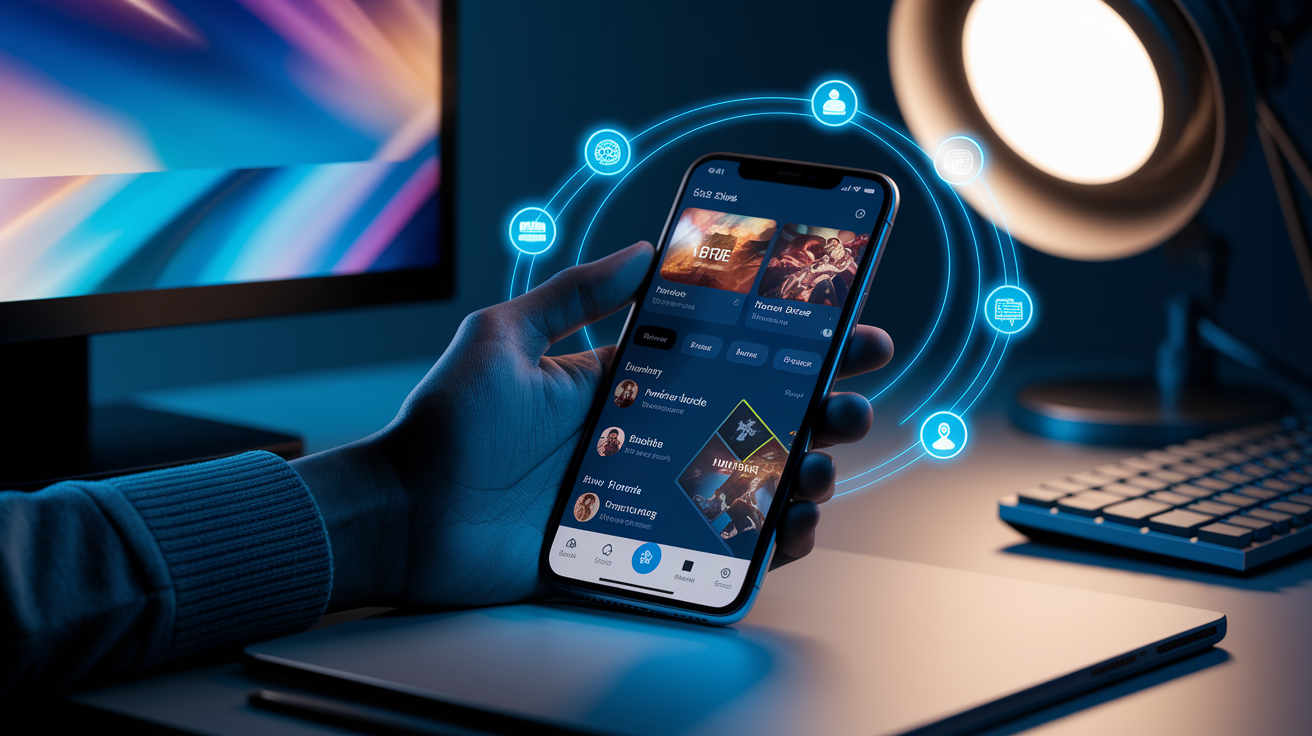
The Steam mobile app brings most of the desktop client to your phone. You get store browsing, library management, remote PC controls, and social features in one app. It’s designed to mirror the desktop experience, so you can access the same sales, recommendations, game pages, and community content you’d find on your computer.
Store functionality covers the basics. Browse sales and new releases, add titles to your wishlist or cart, complete purchases. Two restrictions matter here: you can’t redeem game codes through mobile, and you can’t add a new payment card. Adding cards requires desktop or browser. You can delete an existing card from the app, though. Any purchase charges the credit or debit card already tied to your desktop Steam account. The app also lets you rent films and track price drops on wishlisted items.
Remote downloads are the standout. The app can start game downloads and updates on a configured home PC running Steam. Multi-gigabyte titles like Metal Gear Solid V or Street Fighter V start installing while you’re out, ready when you get home. Friends features include one-on-one chat, viewing achievements and activity, editing your profile and inventory. But group chat? Missing entirely.
- Store experience: Browse sales, add to wishlist/cart, complete purchases, get sale alerts when wishlisted games drop in price.
- Remote downloads: Pick a game from your library, choose your PC, start the download from anywhere. Useful for large installs that take hours.
- Queue control: Monitor download progress through notifications. Pause and resume options are more limited than desktop controls.
- Chat features: Message individual friends, see their online/offline status, achievements, recent activity.
- Profile tools: View and edit your Steam profile, check inventory items, manage trade confirmations from your phone.
- Major limitations: No group chat support, no game code redemption, no option to add payment methods from mobile.
Steam Mobile Store Experience: Browsing, Buying, and Managing Games
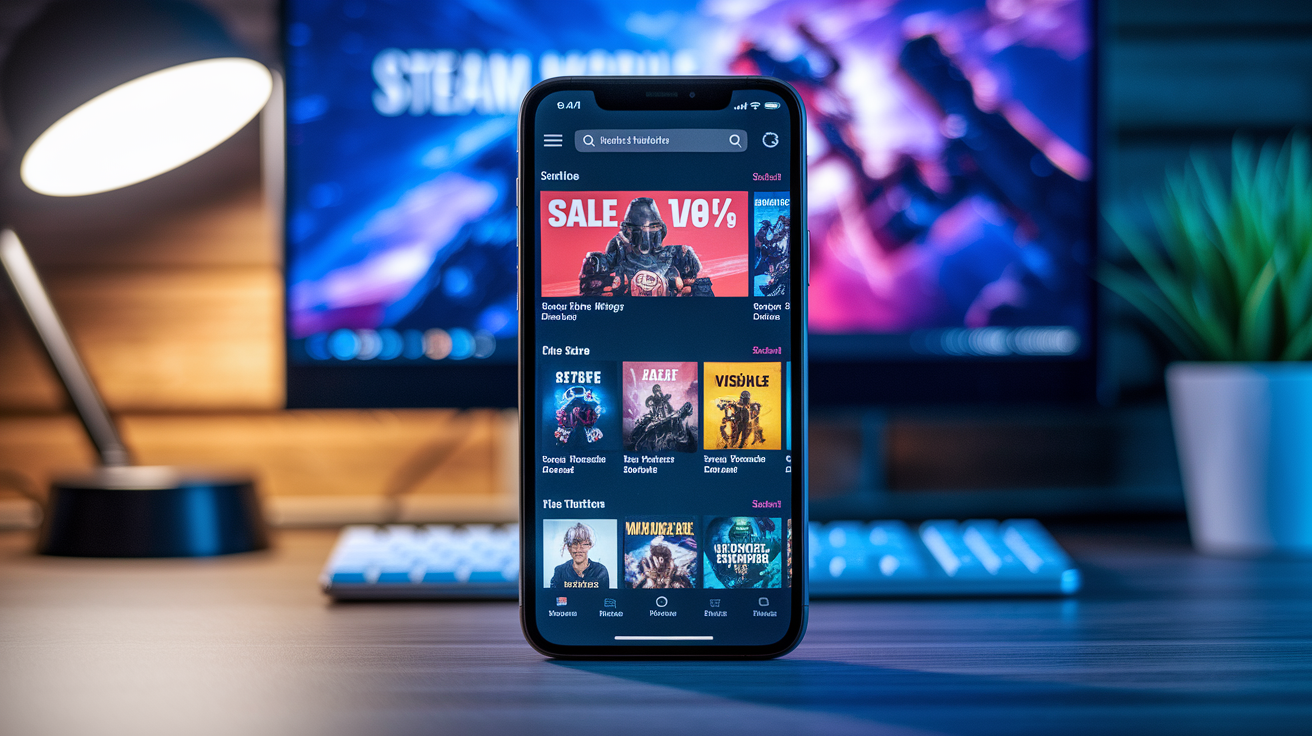
The mobile storefront delivers a clean browsing experience. Navigation feels fast. Search returns results quickly, recommendations appear on the home tab, game pages load with screenshots, trailers, and user reviews. You can filter by genre, price, or user rating. The interface highlights current sales and seasonal events just like the desktop store. Wishlists sync instantly, so titles added on your phone appear in your desktop client and vice versa.
Checkout works with the payment method already saved to your account. Tap “Purchase,” the app prompts for final confirmation, processes the charge to your existing card. You can view purchase history and download receipts. But if you want to add a new card or switch payment providers, you’ll need the desktop client or browser store. The app blocks game code redemption entirely. No text field for entering keys. DLC bundles and season passes can be purchased normally, but any promo codes or product keys from third-party retailers must be redeemed on desktop or through a browser.
| Feature | Mobile Behavior |
|---|---|
| Store browsing | Full access to sales, recommendations, and game pages with trailers and reviews |
| Wishlist sale notifications | Push alerts when wishlisted games drop in price; notifications are customizable |
| Payment handling | Uses existing card from desktop account; can delete a card but cannot add a new one |
| Code redemption | Not supported—must use desktop client or browser to redeem game codes |
| DLC and bundle purchasing | Fully supported; add DLC or season passes to cart and complete purchase normally |
Remote Downloads in the Steam App: Setup, Reliability, and Daily Use

Triggering a remote download requires your home PC to be powered on and running the Steam client. Open your library in the mobile app, select the game you want to install, tap the download button, choose which PC should receive the install. Useful when you own multiple machines linked to the same account. The app confirms the action with a notification, and the download begins on your selected PC without further input. If your PC is asleep or offline, the app displays an error and the download won’t start until the machine is reachable.
Queue management on mobile is simpler than the desktop client’s download tab. You can see which games are downloading, but pausing or reordering the queue from your phone isn’t as flexible. Notifications alert you when an install completes, but there’s no mobile control for bandwidth throttling or scheduling downloads during off-peak hours. Those settings remain desktop only. If you need to pause a download mid-transfer, you can do it from the app. But resuming large downloads after a pause sometimes requires refreshing the library view to confirm progress has restarted.
Real-world reliability is solid for standard home network setups. The feature works when your PC and phone are on the same account and the desktop client is logged in. Corporate networks, VPNs, or strict firewall rules can block remote triggers. The app doesn’t provide detailed error messages when a download fails to start, so troubleshooting connection issues usually means checking your desktop client’s settings. Desktop only controls like download region selection or verifying game files aren’t accessible from mobile. Advanced users still need the full client for fine tuning.
- Open your library tab in the Steam mobile app.
- Select the game or update you want to download.
- Tap the download button and choose your target PC from the device list.
- Confirm the action; the app sends the install command to your desktop client.
- Monitor progress through push notifications or by reopening your library view.
Friends List and Chat Tools on the Steam Mobile App

The friends list displays online and offline status for everyone on your list. Green dots for active users, gray for those who are away or invisible. Each friend’s profile card shows their current game, recent achievements, and activity feed. Useful for seeing who just unlocked a new badge or started playing a co-op title. You can tap into any profile to view inventory items, compare achievement progress, send a quick message. The app syncs your profile edits instantly, so changes to your display name, avatar, or bio appear across all devices.
One-on-one chat works smoothly. Type a message, it delivers in real time, with read receipts and typing indicators. You can send text and emojis. Voice or video calls aren’t supported. Group chat is the big gap. There’s no way to create or participate in group conversations from mobile. If your friends use group chats to coordinate game nights, you’ll need to switch to the desktop client or a third-party app. Friend request notifications arrive as push alerts, and you can approve or decline invitations directly from the notification tray.
Community hubs, Steam News, forums, and live streams integrate into the mobile interface. Tap a game in your library to see its discussion board, read developer updates, or watch a live broadcast. News aggregates press releases and articles from outlets like Eurogamer, Kotaku, and PC Gamer. Same feed you’d see on desktop. If someone comments on your profile or replies to a forum post, the app sends a notification and lets you jump straight to the thread.
Performance, UI Navigation, and Overall User Experience in the Steam App

Navigation feels intuitive. The bottom tab bar puts Store, Community, Library, and your profile within one tap. Search is fast. Type a few letters and results populate immediately with game titles, DLC, and curated lists. Feature discoverability is good. Most functions live where you’d expect them, and the updated framework introduced in the 2022 refresh allows customizable tabs so you can prioritize the sections you use most. The app rarely hides features behind nested menus, making it easy to jump from browsing a sale to checking your friends list to starting a remote download.
Platform differences do exist. The Android version received the updated Steam Chat features first. The iOS update rolled out later. Both platforms now run the same core feature set, but rollout timing can mean Android users see bug fixes and new tools a few weeks ahead of iPhone users. Valve hasn’t published a formal update schedule, so checking your app store for the latest version is the best way to ensure you have the newest features.
Stability notes: The app rarely crashes on modern devices. Occasional force closes have been reported on older Android phones with limited RAM. Battery expectations? Normal use, browsing the store, sending a few messages, adds minimal drain. Streaming live broadcasts or extended chat sessions use more battery. Startup speed: The app opens quickly, usually under two seconds on current generation smartphones. Update frequency: Valve pushes updates a few times per year. Most patches focus on bug fixes and minor UI tweaks rather than major feature additions.
Security, Account Management, and Device Controls in the Steam Mobile App

QR code login simplifies signing in to the desktop client. Open the app, tap the QR scanner, point your camera at the code displayed on your monitor. The app shows a confirmation page with a map and geolocation of the device requesting access. Quick way to verify you’re signing into your own machine and not a compromised terminal. Two factor authentication works through the app as well. When you log in on a new device, Steam sends a numeric code to your phone instead of requiring you to check email or use an external authenticator. The Approve/Deny flow skips the Steam Guard code entirely. Instead of entering a six digit string, you tap “Approve” on your phone after entering your username and password on the desktop.
Trade confirmations and Market listings require mobile approval to prevent unauthorized item transfers. If someone tries to trade an item from your inventory, the app sends a notification with details of the trade. Who’s involved, which items are moving, and a timestamp. You confirm or cancel the trade directly from the notification. Multiple account support lets you switch between accounts without logging out and back in each time. Useful if you maintain separate profiles for testing or regional purchases. Notification settings are granular. Toggle alerts for wishlist sales, friend requests, discussion replies, trades, and community comments independently. You only see the updates you care about.
Pros, Cons, and Practical Recommendations from the Steam Mobile App Review

Remote downloads stand out as the most valuable mobile exclusive workflow. Start a multi-gigabyte install from anywhere and return home to a ready to play library. Store access on the go means you can catch flash sales during lunch breaks or wishlist games while reading reviews on the train. One-on-one chat keeps you connected to friends without opening the desktop client. Film rentals add unexpected utility for users who treat Steam as a media hub. QR code login and trade confirmations improve account security with less friction than traditional 2FA flows.
Group chat is the biggest functional gap. If your friend circle relies on group conversations to coordinate multiplayer sessions, you’ll still need the desktop client. Code redemption is desktop only, so any bundle keys or promo codes require switching devices. Payment management is similarly limited. You can delete a saved card but not add a new one, which feels like an arbitrary restriction. Performance is generally smooth, but the app lacks advanced download controls like bandwidth throttling or region selection. There’s no way to verify game files or troubleshoot install errors from mobile.
The app works best for shoppers who want instant access to sales and wish list tracking, remote download users who need to queue large installs before heading home, and market traders who value on the go trade confirmations. It’s less ideal for players who depend on group chat, frequently redeem third-party codes, or need full control over download queues and settings. If your Steam use is primarily single player library management and occasional storefront browsing, the mobile app covers nearly everything. If you coordinate multiplayer lobbies or troubleshoot installs regularly, you’ll still reach for the desktop client.
| Feature | Mobile Strength | Desktop Advantage |
|---|---|---|
| Store purchasing | Browse and buy anywhere; wishlist alerts arrive as push notifications | Can add new payment methods and redeem game codes |
| Remote downloads | Trigger installs on home PC from any location; great for large games | Full queue management, bandwidth throttling, and install verification |
| Chat features | One-on-one chat with typing indicators and read receipts | Group chat support and voice/video calling |
| Account and payment management | QR login, trade confirmations, and authorized device list on the go | Add payment cards, adjust billing details, and manage family sharing settings |
Final Words
Jump in: the Steam mobile app brings the desktop store, library, and social tools to your phone. Browse sales, add to wishlist or cart, and buy on the go.
Remote downloads start multi-GB installs at home from anywhere. One-on-one chat, profiles, and activity cover social needs, though you can’t add payment cards in-app, redeem codes, or use group chat.
This Steam mobile app review: store functionality remote downloads and friends features shows the app suits shoppers and remote-download users who want low-friction access. Not perfect, but it keeps your games and friends ready when you are.
FAQ
Q: What is the $5 rule on Steam?
A: The $5 rule on Steam is that you typically must spend at least $5 on your account to enable features like trading and the Community Market; check Steam Support for exact eligibility and exceptions.
Q: What’s the point of the Steam Mobile app?
A: The point of the Steam Mobile app is to mirror the desktop client: browse and buy games, manage wishlist/cart, start remote downloads, chat one-on-one, and handle two-factor auth and notifications.
Q: Do 72% of devs believe Steam?
A: The claim that 72% of devs believe Steam refers to a survey result; without the original source you should check that survey for exact wording, sample size, date, and what “believe” measured.
Q: Why can’t I see 18+ content on Steam?
A: You can’t see 18+ content on Steam because age verification, regional laws, or family/parental settings may block it; sign in, verify your age, and check store and parental controls to fix access.